Gamepad Tester – Test PS5, PS4, Xbox & Joysticks Free Online
Use our free gamepad tester to check PS5, PS4, Xbox, and Switch controllers online. Test buttons, stick drift, vibration, and input lag instantly, no download needed.
No Controllers Detected — Connect via USB or Bluetooth and press any button
Plug in your controller with USB or pair via Bluetooth, then press any button to begin.
Advanced Testing Suite
Live list of all currently pressed button IDs for mapping check.
Time elapsed since the controller was connected to the system.
Raw high-precision axis values for precise deadzone analysis.
Estimated input response time based on frame processing delta.
Detects unwanted movement when sticks are in neutral position.
Precise pressure values for L2 and R2 analog triggers.
Current battery level and charging status (if supported).
Full hardware ID and mapping protocol reported by OS.
Real-time circular deadzone and movement visualization.
Test rumble motors functionality (requires hardware support).
Complete real-time dump of all buttons and axes detected by the browser.
You’re mid-game, and your character suddenly starts moving on its own, even though you’re not touching the stick. Or you press a button multiple times before it finally registers. Before spending money on a new controller, try a free online gamepad tester.
In just two minutes, it can tell you exactly what is broken, such as stick drift, input lag, a dead button, or a failing vibration motor.
Here, you’ll find everything you need to know about testing your PS5 DualSense, PS4 DualShock 4, Xbox Series, Switch Joy-Con, or any other USB or Bluetooth controller right from your browser. No installations, no sign-up, and completely free.
What Is a Gamepad Tester?
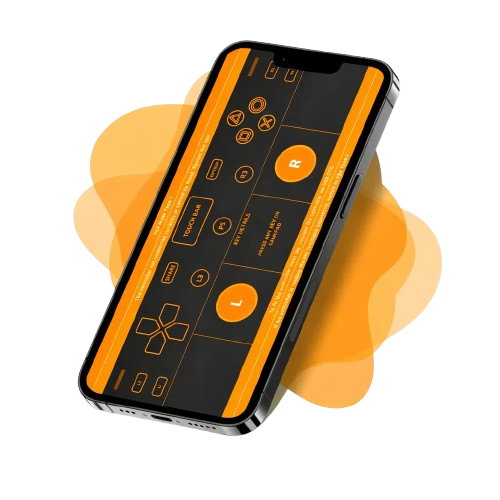
It is a real-time tool that tracks all your controller’s inputs using the HTML5 Gamepad API. Once you connect your controller via USB or Bluetooth, it shows live data, including:
How to Use the Gamepad Tester?
I will show you how to use the gamepad testing tool. When my controller starts acting strange, this tool helps me quickly check if every button, trigger, and stick is working properly. The process is simple and only takes a few minutes. You can easily follow the same steps.
Key Features of the Gamepad Tester
Instant feedback for
buttons and sticks
Our tool shows you real-time feedback the moment you press a button. Every input lights up on the screen right away. You can test your analog sticks, triggers, and D-pad all at once.
Multi-controller support
You can connect more than one controller and test them at the same time. Gamepad works on Windows, Mac, Linux, Android, and iOS. It supports a wide range of devices, from PS5 and Xbox to Nintendo Switch controllers.
Portable and Easy-to-Use
Online Tool
Our Tool is a fully portable online tool that works right in your browser. You don’t need to install anything at all. It loads fast and runs smoothly on both desktop and mobile devices.
Connection Stability
Connection Stability tracks how long your controller has been connected. You can notice any drops or interruptions immediately. It helps ensure a steady and reliable connection while you play.
D-Pad Test
Test your D-Pad for responsiveness. Check that each directional input registers correctly. Make sure every command works as expected.
Drift Detection for analog sticks
Drift detection finds unwanted stick movements. The tester checks the analog sticks while they are still. You can also test touchpads for responsiveness.
Latency Test
Latency Test measures how quickly your controller responds in milliseconds. You can see any input lag as it happens. It helps you make sure your controls feel accurate and responsive.
Left Stick Axis
The left analog stick shows its X and Y coordinates in real time. This lets you see exactly how the stick moves. It’s useful for spotting any drift or inconsistencies.
Right Stick Axis
The right analog stick displays its X and Y coordinates instantly. You can check if it responds correctly in every direction. It helps ensure precise control in games.
Triggers Pressure
L2 and R2 trigger pressure levels in real time. You can see how much pressure you’re applying. It’s helpful for testing trigger sensitivity.
Battery Status
Battery Status displays your controller’s current charge level. You can see how much battery is left at a glance. It helps you know when it’s time to recharge.
Controller Metadata
Controller Metadata shows details like model, firmware, and connection type. You can check this information quickly to verify your setup.
Stick Visualizer
The Stick Visualizer gives a live representation of stick movements. You can see exactly how far and in which direction each stick moves. It helps identify stick sensitivity or calibration issues.
Vibration Test
The Vibration Test lets you feel your controller’s vibration feedback. You can adjust the intensity and check if each motor is working correctly. It ensures your vibration settings match what you feel in-game.
Supported Controllers
The game controller tester works with a wide range of controllers. It supports PlayStation, Xbox, Nintendo, and other devices.
You can connect them using USB or Bluetooth.
PlayStation Controllers:
Xbox Controllers:
Nintendo Switch Controllers:
Nintendo Switch Controllers:
Stick Drift Test – How to Diagnose and Fix Joystick Drift
Stick drift happens when your analog stick moves the game character even when you aren’t touching it. This is a common issue on PS4 DualShock 4, PS5 DualSense, and Xbox controllers.
- Connect your controller to the tester.
- Release both analog sticks and observe the axis values on screen.
- If the values don’t return to 0.0 / 0.0, your stick is drifting. Even a small consistent offset indicates wear in the analog module’s potentiometer.
- Worn potentiometers inside the stick.
- Dust or debris beneath the joystick.
- Loose calibration or software settings.
- The dead zone is set too low, causing normal stick wear to register as movement.
- Recalibrate your controller using system settings or calibration tools.
- Clean the stick base with isopropyl alcohol and compressed air.
- Adjust the dead zone for more precise control.
- Replace the analog module if cleaning and recalibration don’t solve the problem.
- For PS5 DualSense and Xbox Series controllers, consider using anti-drift replacements. Options like ALPS or hall-effect sticks last longer than standard potentiometers.
Input Lag: What It Is and How to Measure It
Input lag is the delay between pressing a button and seeing the action on-screen.
Even 10–20ms can impact competitive gameplay.
| Connection Type | Typical Input Lag |
|---|---|
| USB Wired | 4–8 ms |
| Bluetooth (modern) | 8–15 ms |
| Wireless dongle (2.4GHz) | 6–12 ms |
What Makes This Gamepad Tester a Better Choice for Gamers?
Pro Tips for Accurate Testing
Getting the most out of your gamepad tester takes just a little preparation. A few simple steps before you start can make your results much more accurate. These tips work for all types of controllers, wired or wireless. Follow them every time for the best and most reliable test results.
Update Your Controller Firmware
Update your controller firmware before testing. This avoids wrong readings, missed inputs, and vibration issues.
Fully Charge Your Wireless Controller
Fully charge your wireless controller before testing. This prevents delayed inputs, dropped connections, and false drift readings.
Use updated browsers.
Use updated browsers like Chrome or Edge. This improves performance and Gamepad API input detection.
Test Your Controller Regularly
Test your controller regularly. This helps you catch joystick drift and sticky buttons early.
Dead Zone Explained, Calibrate for Precision
- Too large a dead zone: sluggish and inaccurate aiming.
- Too small a dead zone: drift-like behavior from normal stick wear.
Vibration Test, Check Your Rumble Motors
- Left motor: heavy, low-frequency rumble.
- Right motor: light, high-frequency buzz.
Troubleshooting Common Issues
| Problem | Cause | Solution |
|---|---|---|
| Controller not detected | Loose USB or no button pressed | Reconnect and press a butto |
| No input | Browser permissions blocked | Enable gamepad access in settings |
| Drift at rest | Worn analog stick | Recalibrate, clean, or replace |
| Buttons register incorrectly | Wrong input mode | Use XInput or remap in DS4 Windows |
| No vibration | Motor issue or inactive tab | Activate tab or check motors |
| High input lag | Bluetooth interference/low battery | Switch to USB, charge controller |
| Random disconnects | Weak signal | Move closer/reconnect |